Buying tickets
1. Choose the event and date
Open the link your organization shared. You'll land on either their list of upcoming events or a single event page.
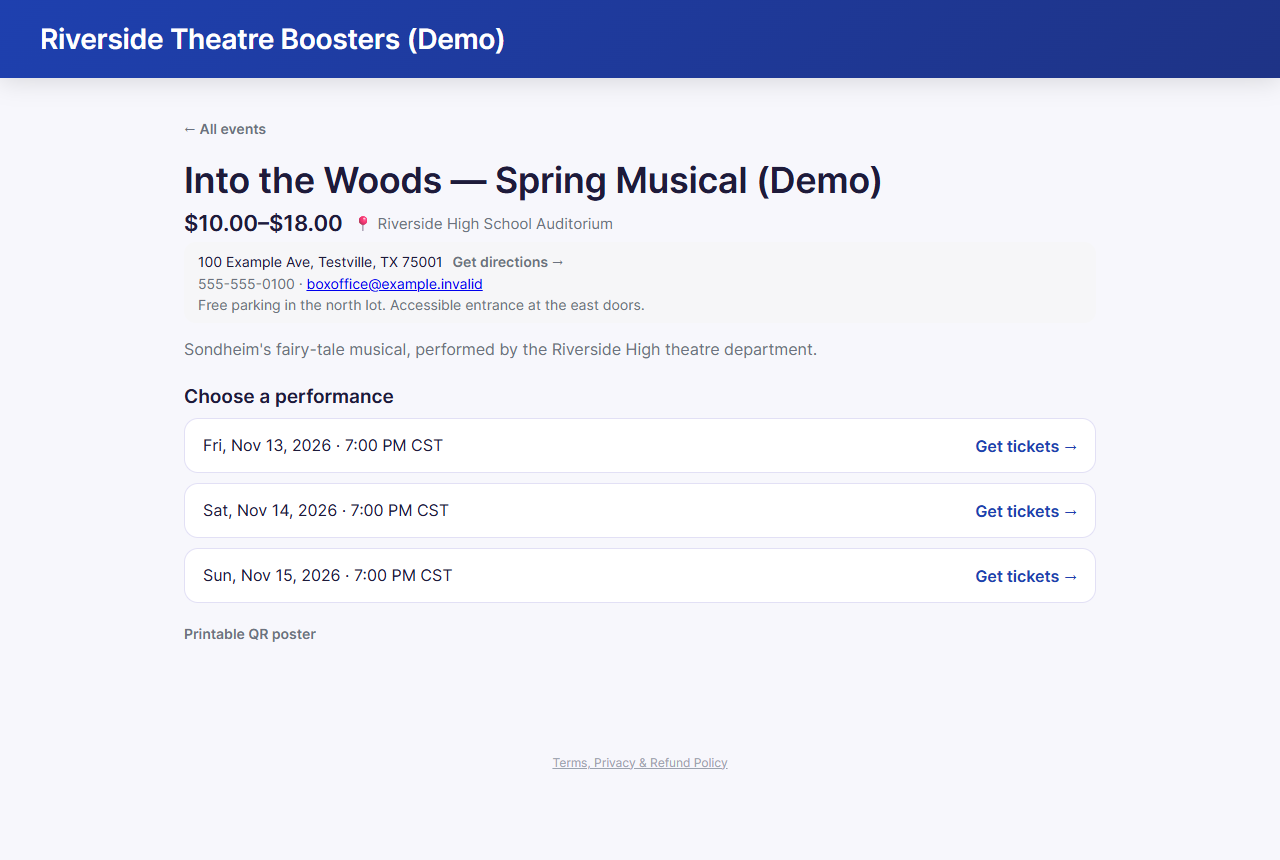
On the event page you'll see the description, the venue's address with Get directions →, the venue's contact details and notes (such as parking), and a list of performances. Click Get tickets → next to the date you want.
2a. Reserved seating: pick your seats
Some events have assigned seats. You'll see a seat map with the stage at the top.
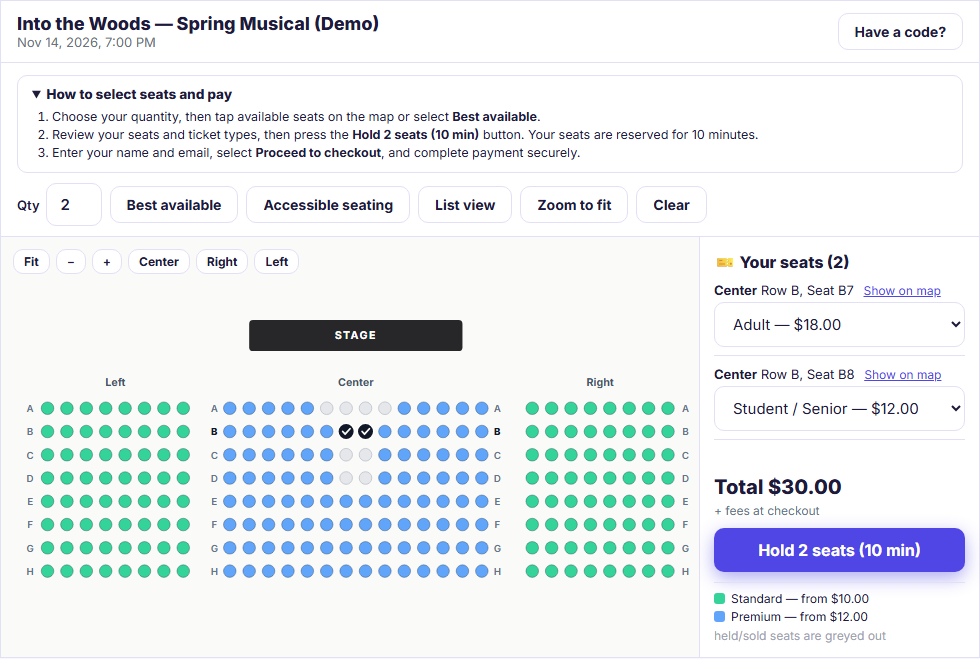
- Tap the seats you want. Row letters/numbers appear at both ends of every row and section names appear above each section. Hovering or focusing a seat shows its section, row, seat number, and starting price; tapping selects it with a checkmark and confirms Added: … (and highlights that row's labels). The seat colours match the on-map price key (tap Key on a phone to open or close the legend), and seats that are sold or already held are greyed out. Zoom in to see seat numbers inside the dots.
- Or set Qty and tap Best available to have the best seats together picked for you.
- Choose a ticket type for each seat. If the event has more than one (for example Adult and Student / Senior), each seat in Your seats has a drop-down. It starts on the full-price type; change it for anyone who qualifies for a discount. Tap Show on map next to any selected seat in Your seats to zoom straight to it and pulse it on the map.
- Need wheelchair or accessible seating? Tap Accessible seating to highlight those locations. A square marks a wheelchair space; a round seat marks a fixed seat for someone with accessibility needs. Each accessible spot has a companion seat next to it.
- List view shows the seats as a list, which is handy on a small phone or with a screen reader. Section buttons (such as Center, Left, and Right) jump to a section; Zoom to fit shows the whole room.
- Tap Hold N seats (10 min). The seats are yours for 10 minutes while you check out.
- If the organizer offers Add to your order items (such as programs, flowers, or concessions) or an optional Add a donation prompt, choose any extras you'd like. Donations carry no platform fee, and you can optionally tick the box to cover card processing on a donation.
- Enter your Full name, Email, and optionally Phone, then tap Proceed to checkout.
Changed your mind? Release seats gives them back right away.
2b. General admission: choose how many
For open seating, there's no map:
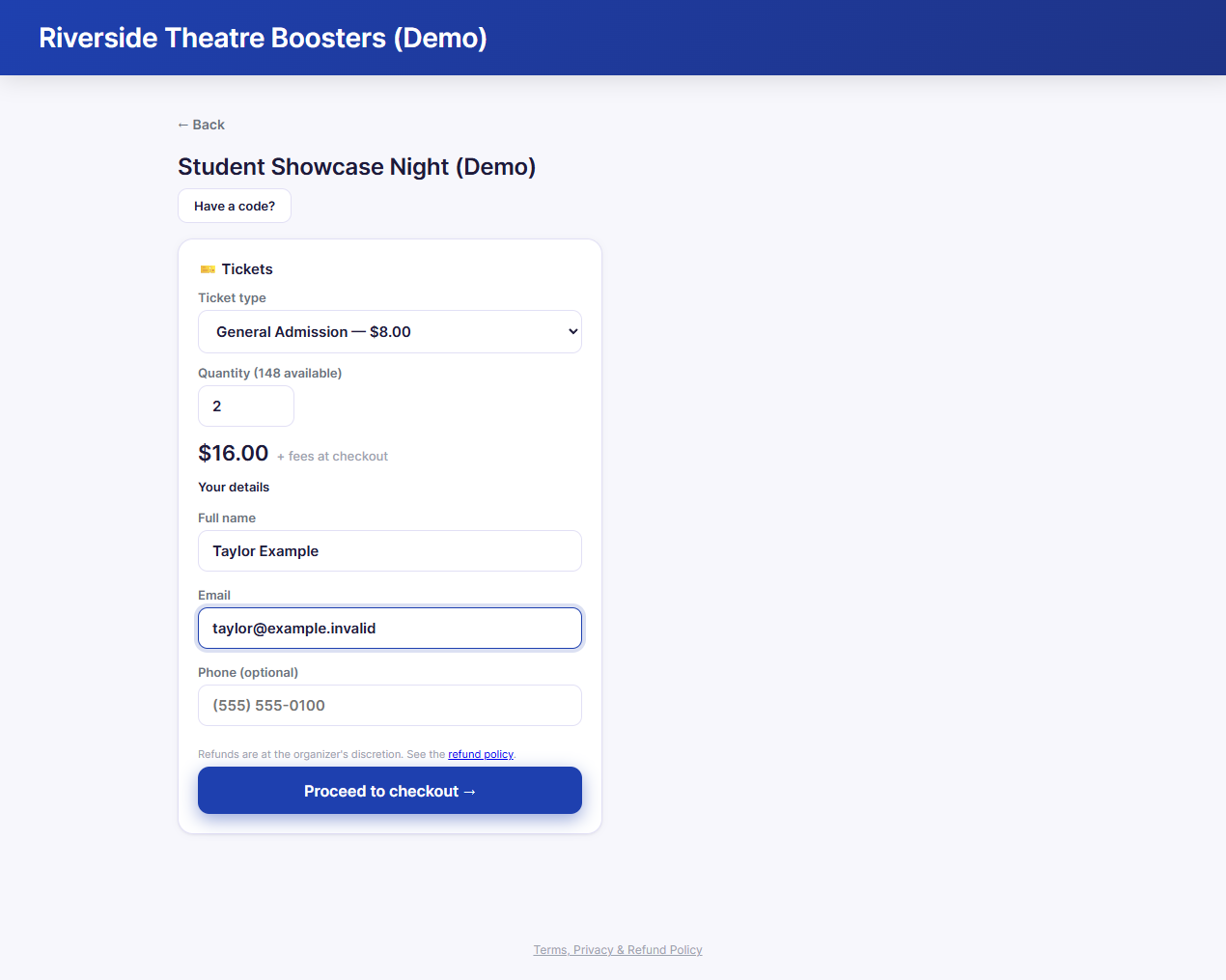
- Pick the Ticket type and Quantity. The number available is shown.
- Choose any optional Add to your order items (concessions, programs, flowers, merch) or an optional donation if offered on the event.
- Enter your Full name, Email, and optionally Phone.
- Tap Proceed to checkout →.
Have a code?
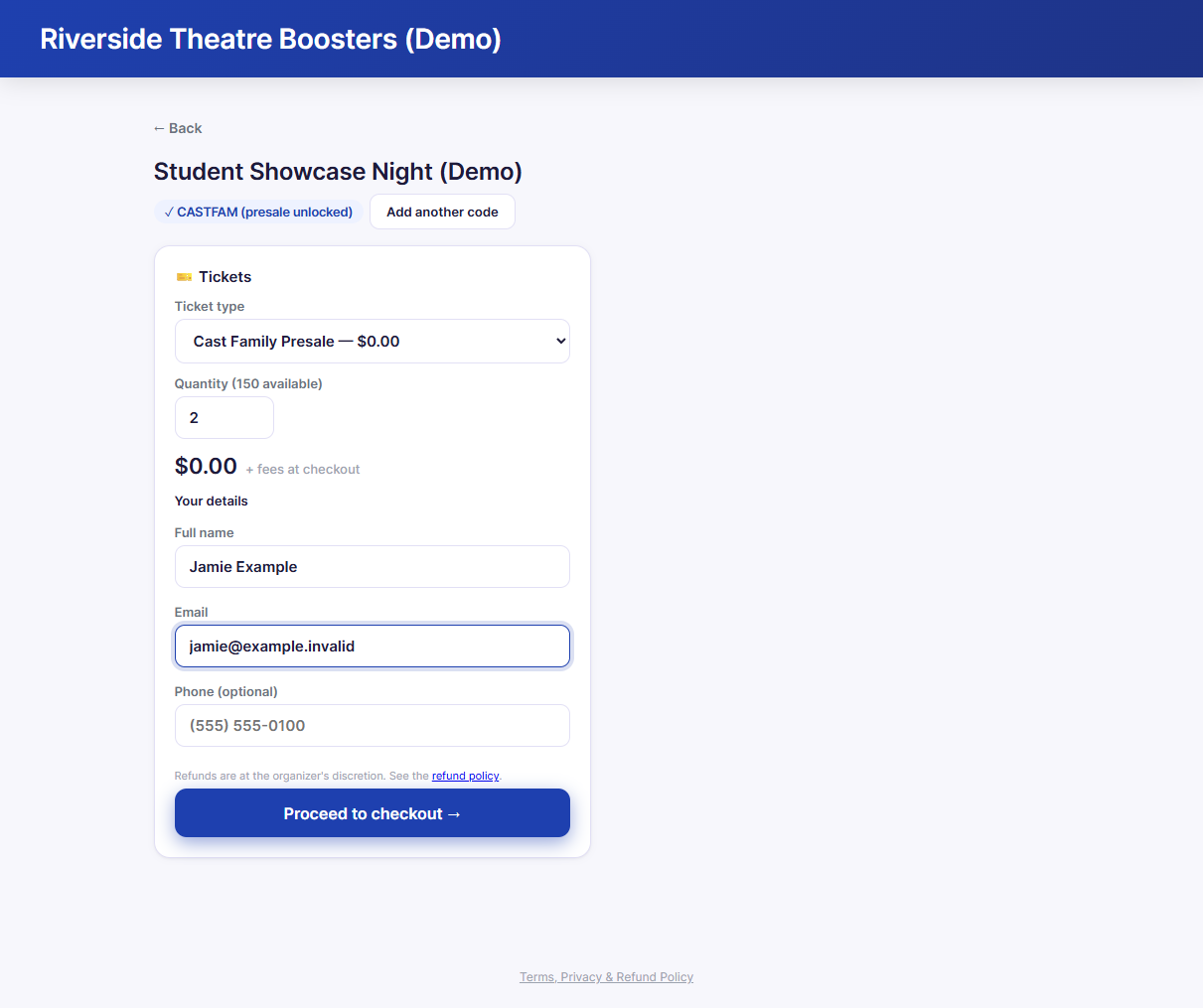
If the organization gave you a code, tap Have a code?, type it, and tap Apply.
- A presale code reveals tickets that are otherwise hidden, for example a cast-family presale. The new ticket type appears in the list and is selected for you.
- A discount code is applied at checkout, where you'll see the lower total before you pay.
If you got a personal code by email, its link fills in the code for you. A personal code only works when you check out with the email address it was sent to, and it may be good for one order only.
Sold out? Join the waitlist
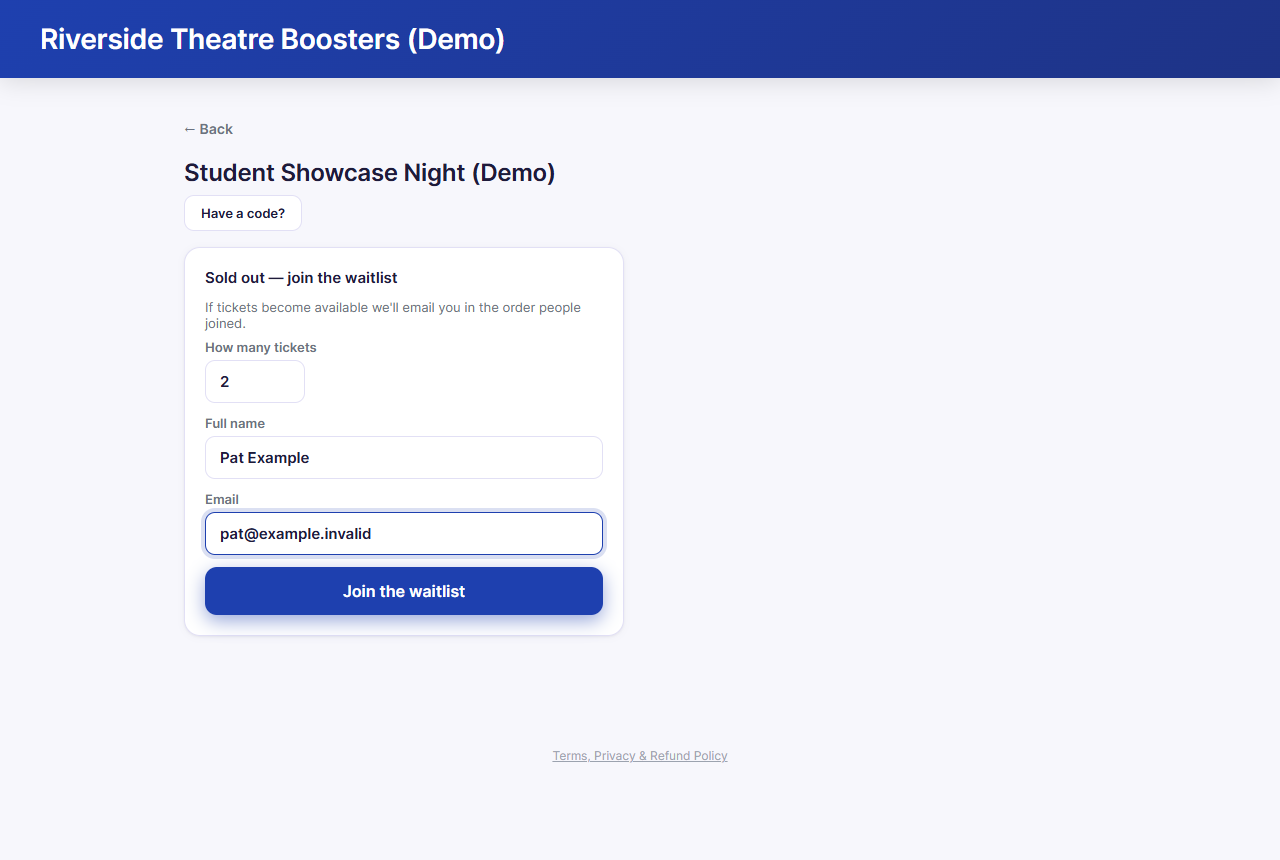
When a general admission performance is sold out, you'll see Sold out — join the waitlist instead of the ticket form.
- Choose how many tickets you want (and the ticket type, if there's a choice).
- Enter your name and email, and tap Join the waitlist.
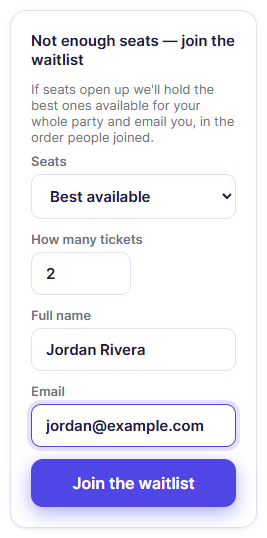
For reserved seating, when there aren't enough open seats for your party, you'll see Not enough seats — join the waitlist beside the seat map. Set Qty to your party size first. Choose Seats (best available, wheelchair-accessible, or one price level), then enter your name and email. If seats open up, the best ones for your whole party are held for you.
If tickets free up, you'll get an email with a link. You'll have 30 minutes to buy before the offer passes to the next person. See After you buy.
3. Pay
You're taken to a secure payment page run by Stripe or Square, the organization's payment provider, to pay by card. When you're done, you return to a Your order page with your confirmation code. Free tickets skip this step. See After you buy.
Prices shown while you pick seats don't include the service fee. The fee is added at checkout, where you see the full total before you pay.
Troubleshooting
| If you see... | It means... | Do this |
|---|---|---|
| "Tickets for this performance are not on sale." | Sales haven't opened yet, or have closed | Check the date on the organization's announcement, or contact them |
| "Some seats were taken by another buyer and were removed." | Someone else got those seats first | Pick other seats |
| "Your seat hold expired." | The 10-minute hold ran out | Pick your seats again and check out within 10 minutes |
| "That code isn't valid." / "That code has expired." | The code is wrong, for another event, or no longer active | Check the spelling, or ask the organization |
| "That code has already been used." | The code has reached its limit | Ask the organization for a new code |
| "That code was issued to a different email address." | It's a personal code for someone else's email | Check out with the email the code was sent to |
| A "payments unavailable" message | The organization isn't taking card payments online yet | Buy at the door, or contact the organization |
| "Please complete the anti-bot challenge and try again" | Our spam protection wasn't sure you're a person | Refresh the page and try again. A VPN, private browsing, or a browser extension can trigger this, so try without them |
| "Enter your name and a valid email to continue." | A required detail is missing | Fill in your full name and a valid email |
Related
- After you buy: tickets, getting in, and refunds