Personal phone scanners
Volunteers can scan tickets with their own phones, with no account, password, or app install. An organizer shows them a QR code, they scan it, type their name, and they're scanning.
Where to find it:
- Organizer: Events tab → select the event → Scanner Access
- Volunteer: scan the QR code the organizer shows you, with your phone's camera
Who can use this: an organizer with Manage Ticketing (Studio) creates the code. Anyone who scans it can join.
Organizer: create the pairing code
- On the Events tab, select the event and click Scanner Access.
- Choose the Gate, then click Generate QR.
- Show the QR code to your volunteers, or click Copy link and text it to them.
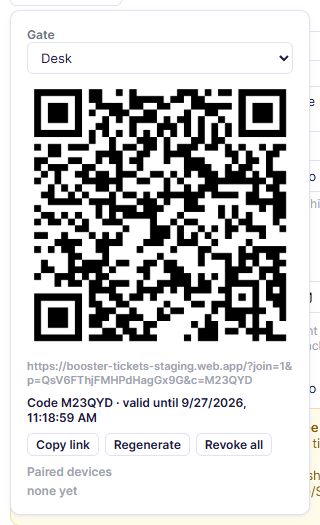
Each volunteer who joins is listed under Paired devices. For all the buttons, see Sharing and scanner access.
Volunteer: join and scan
- Point your phone camera at the QR code and open the link.
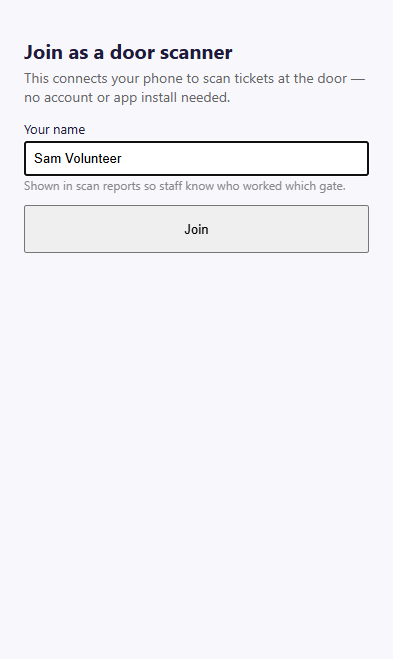
- On Join as a door scanner, type Your name. It appears in scan reports so staff know who worked which gate.
- Tap Join.
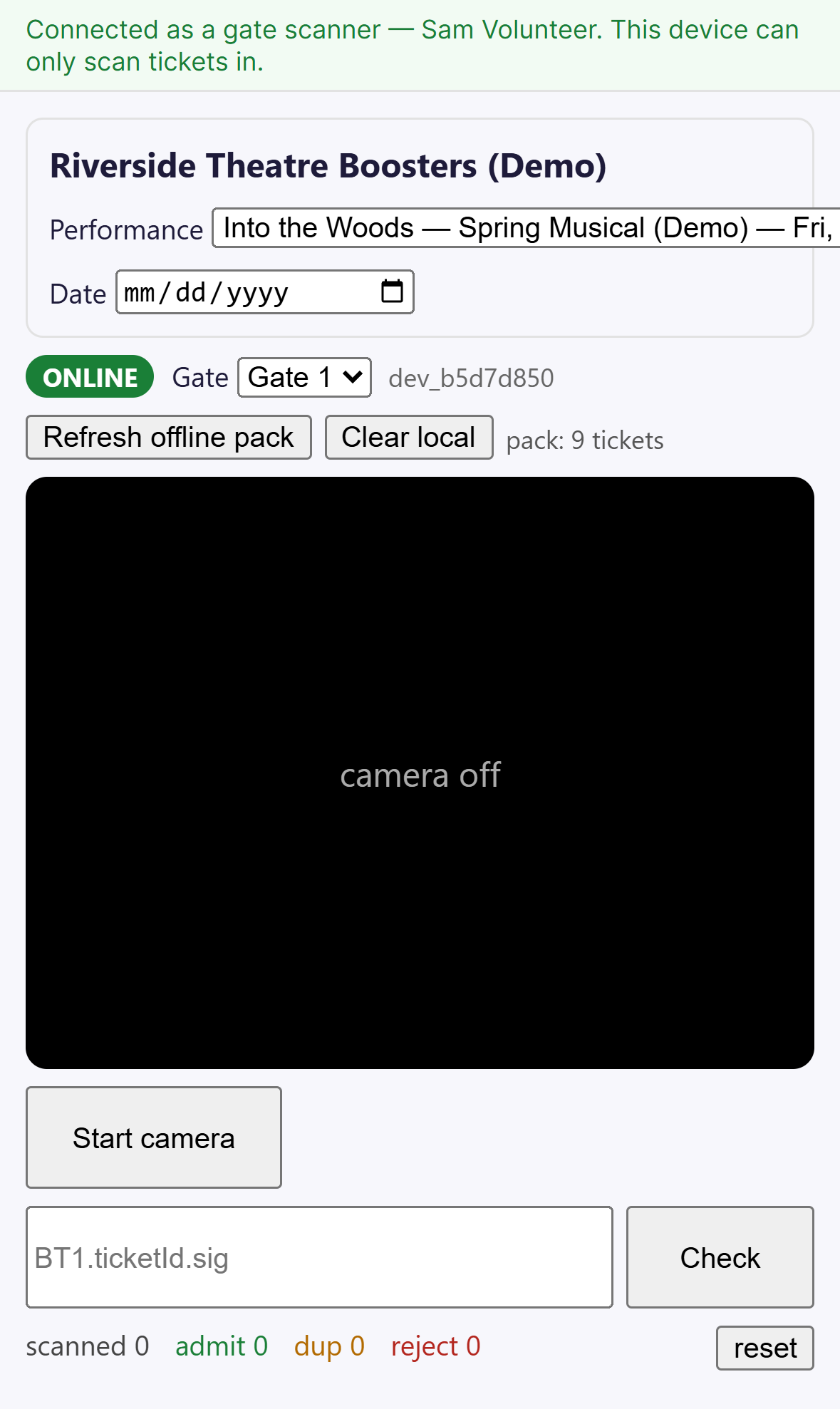
- You'll see "Connected as a gate scanner — [your name]. This device can only scan tickets in."
- Choose tonight's Performance and tap Refresh offline pack.
- Tap Start camera and scan tickets. See Scanner for what each result means.
What a paired phone can and can't do
| Can | Can't |
|---|---|
| Scan tickets in for this event | Sell tickets or take money |
| Work offline with the offline pack | Refund or cancel tickets |
| See other events or change settings |
After the event
The pairing code expires on its own (the popover shows valid until …). To end access right away, open Scanner Access and click Revoke all, or Revoke next to one volunteer's name.
Troubleshooting
| If you see... | It means... | Do this |
|---|---|---|
| The link doesn't connect | The code expired or was regenerated | Ask the organizer for the current QR code |
| The phone stopped working mid-event | Its access was revoked | Ask the organizer to check Paired devices, then rejoin with the current code |
| Start camera is greyed out | No performance is selected | Pick the performance first |
Related
- Scanner: scan results and offline mode
- Sharing and scanner access