Scanner
The Scanner turns any phone or tablet with a camera into a ticket scanner. Each scan shows a large coloured result and plays a sound, so the person at the door can keep their eyes on the line.
Where to find it: Scanner tab
Who can use this: anyone with Scan Tickets / Check-in (or Manage Ticketing). Volunteers without an account can use a personal phone scanner, which has the same screen.
Start scanning
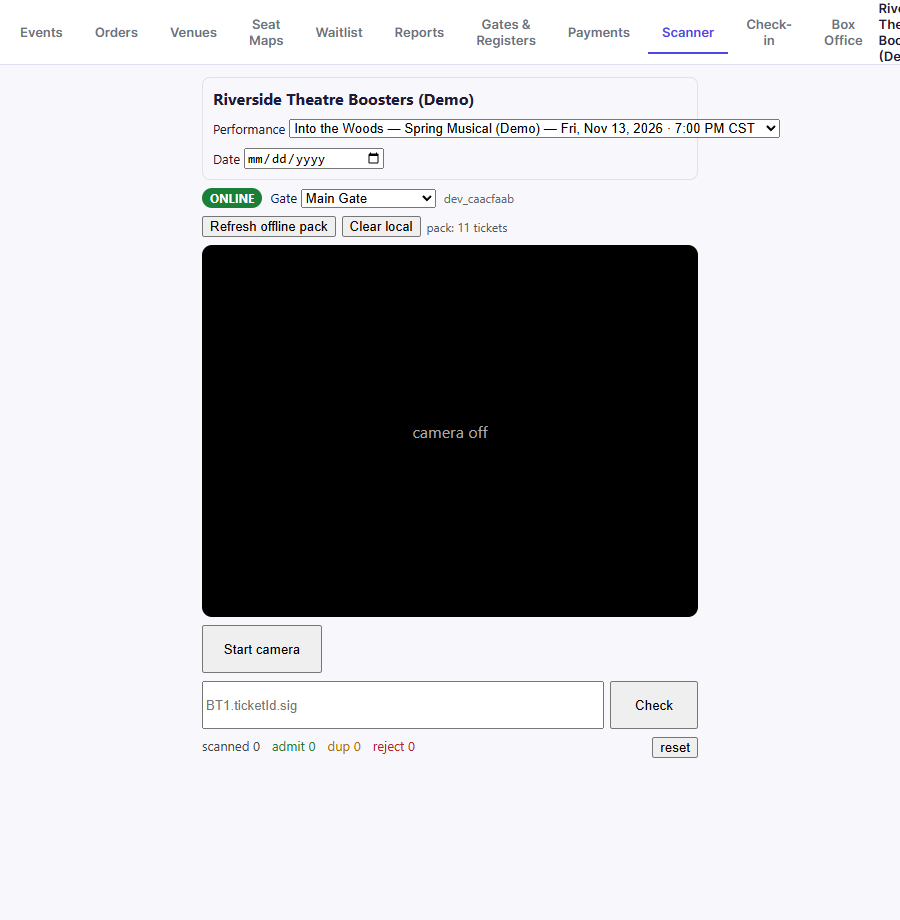
- Choose the Performance. Each is listed with its date and time. (The Date box can shorten a long list.)
- Choose your Gate. The names come from Gates & Registers. Scan reports show which gate admitted each ticket.
- Tap Refresh offline pack. The line beside it confirms how many tickets were downloaded, e.g. "pack: 11 tickets."
- Tap Start camera and allow camera access when your browser asks.
- Hold each ticket's QR code in view. It scans automatically.
Tap Stop camera when you're done.
Scan results
| Banner | Colour | Meaning | Do this |
|---|---|---|---|
| ADMIT | Green | Valid ticket, first scan | Let them in |
| RE-ENTRY OK | Blue | Already scanned, and the event allows re-entry | Let them back in |
| ALREADY SCANNED | Orange | This ticket was already used. Shows where it was scanned | Check with a lead before admitting |
| DO NOT ADMIT | Red | Not valid for this performance (wrong night, refunded, or not a real ticket) | Send them to the check-in desk or box office |
The banner also shows the ticket holder's name, seat, and ticket type (for example "Adult"). The counters at the bottom (scanned, admit, dup, reject) track this device's session. Tap reset to clear them.
Whether a second scan shows RE-ENTRY OK or ALREADY SCANNED depends on the event's Re-entry allowed setting. See Event details.
Scanning without internet
The offline pack lets you keep scanning if the connection drops:
- The badge at the top shows ONLINE or offline.
- Scans made offline show "queued — will confirm on sync."
- When the connection returns, tap Sync N queued to upload them.
- If the pack is more than 15 minutes old, you'll see "Offline pack is over 15 minutes old. Refresh before opening the gate." Tap Refresh offline pack, so tickets sold at the box office since then are included.
Clear local deletes the offline pack and any saved data from this device.
If a QR code won't scan
Try more light, or ask the buyer to turn up their screen brightness. If it still won't scan, look the buyer up by name at the Check-in desk. The box under the camera can check a ticket code by hand: type it and tap Check.
Troubleshooting
| If you see... | It means... | Do this |
|---|---|---|
| "Select a performance above before scanning." | No performance is chosen | Pick the performance |
| Start camera does nothing, or shows an error | The browser was denied camera access | Allow camera access for this site in your browser settings, then try again |
| Everyone shows DO NOT ADMIT | Wrong performance selected | Check the performance at the top |