Event details
The first panel on an event holds everything buyers read about it, plus two business settings: who pays the per-ticket fee, and when sales open and close.
Where to find it: Events tab → click an event in the list → the top panel
Who can use this: anyone with Manage Ticketing (Studio)
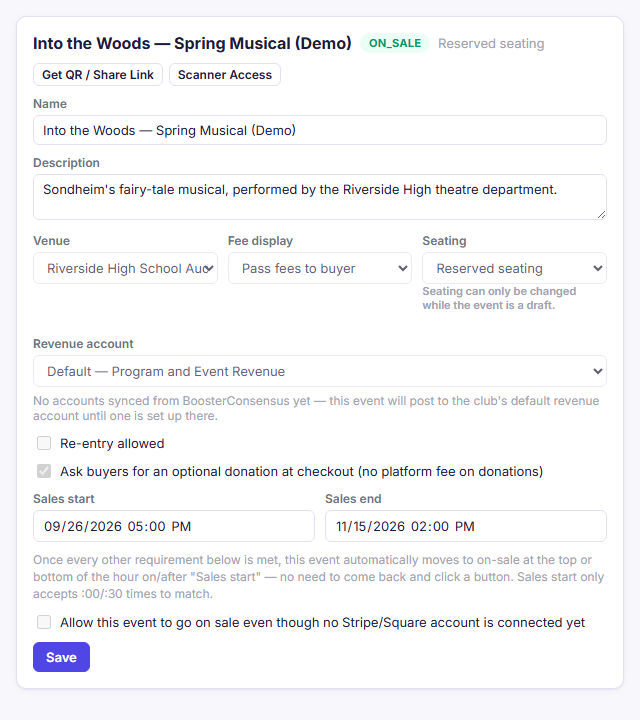
Edit the details
- Change any of the fields described below.
- Click Save at the bottom of the panel.
Nothing takes effect until you click Save.
Field reference
| Field | Required to go on sale? | Notes |
|---|---|---|
| Name | Yes | Shown on your public pages, emails, and tickets |
| Description | No | Shown on the public event page |
| Venue | Needed for reserved seating | Buyers see the venue's address, contact info, and notes. See Venues |
| Fee display | — | Pass fees to buyer adds the per-ticket fee on top of your price at checkout. Absorb fees keeps the buyer's total at your ticket price, and the fee comes out of your proceeds |
| Seating | Yes | General admission or Reserved seating. Can be changed while the event is in draft and has no ticket types yet |
| Default GA capacity (general admission only) | Yes, here or on every performance | Maximum tickets per performance, e.g. 300. You can override it per performance |
| Revenue account | No | Only used by clubs that also use BoosterConsensus accounting. Ticketing-only organizations can leave it on Default |
| Re-entry allowed | No | When ticked, a ticket that has already been scanned in can be scanned again (the scanner shows RE-ENTRY OK). When unticked, a second scan shows ALREADY SCANNED |
| Ask buyers for an optional donation at checkout (no platform fee on donations) | No | Shows an optional donation prompt (with $5, $10, $25, $50 presets and Other $) during online checkout. When ticked, you can also enter an optional Donation message (up to 300 characters). See Add-ons and donations |
| Sales start | Yes | When online sales open. Only :00 and :30 times are accepted |
| Sales end | Yes | When online sales close. Must be after Sales start |
| Allow this event to go on sale even though no Stripe/Square account is connected yet | No | See below |
The sales window and automatic on-sale
Once everything on the Status checklist is complete, the event moves to on-sale by itself at the first :00 or :30 on or after Sales start. You don't have to come back and click anything. That's why Sales start only accepts times on the hour or half hour.
Selling before a payment provider is connected
Tick Allow this event to go on sale even though no Stripe/Square account is connected yet to open an event before you've connected payments. While no provider is connected:
- Online buyers can only complete free or fully-comped orders. Anyone trying to pay by card sees a clear "payments unavailable" message instead of a broken checkout.
- The Box Office works normally. Cash, check, comp, and manually-run card sales are collected at the drawer and never go through Stripe or Square.
Event image
The 🖼️ Event image panel sits just below the details. Buyers see this picture on your event page.
- Click the dashed box or drag a file onto it. PNG, JPEG, WebP, or GIF, up to 6 MB.
- To change it, drop a new file on the box (Replace image).
- Click Remove image to delete it.
Common questions
Can I change the event from general admission to reserved (or back)? Yes, as long as the event is still in draft and has no ticket types yet. If you already added ticket types on a draft event, delete those ticket types first, change Seating, and click Save. Once an event has been scheduled or put on sale, its seating mode is locked.
What's the per-ticket fee? 1% of the ticket price plus $0.75 per ticket sold for standalone Ticketing and BoosterConsensus Core accounts (or 1% plus $0.50 per ticket on paid BoosterConsensus Plus and Complete plans). Donations never carry a platform fee. Fee display decides whether the buyer or your organization covers the fee.
Related
- Going on sale: the checklist that decides when the event can open
- Payments: connect Stripe or Square