Events
An event is the show or game you're selling, like "Into the Woods" or "Homecoming Game." Each event has one or more performances (the dates and times), plus the prices and ticket types buyers choose from.
Where to find it: Events tab
Who can use this: anyone with Manage Ticketing (Studio)
Create an event
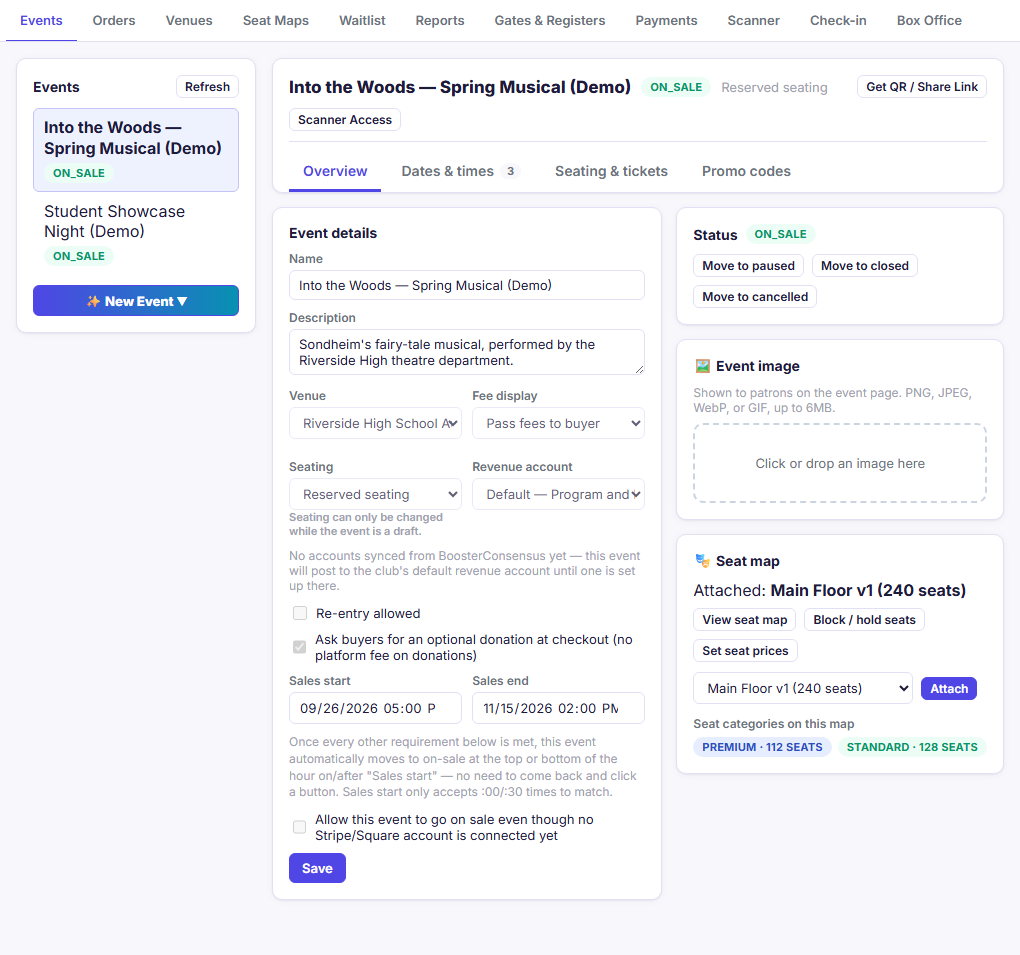
- On the Events tab, click ✨ New Event at the bottom of the Events list.
- Type the event's name.
- Choose the seating:
- General admission: buyers pick a quantity and sit anywhere. You set a capacity.
- Reserved seating: buyers pick specific seats on a seat map.
- Optionally pick a venue. You can also add or change it later.
- Click Create The New Event.
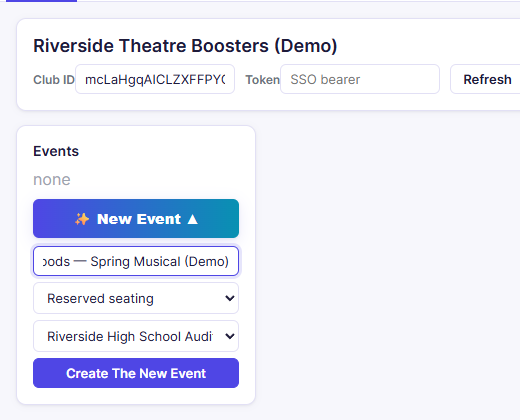
The event starts in draft, is selected in the Events list, and its setup panels open on the right.
Note: While an event is still in draft and has no ticket types yet, you can switch its Seating between General admission and Reserved seating in the Event details panel. Once ticket types are added or the event leaves draft, the seating mode is locked (delete its ticket types first if you need to switch a draft event).
The event setup screen
On tablets and computers (760 px and wider), the Events list stays pinned on the left while the selected event is organized into four section tabs across the top (Overview, Dates & times, Seating & tickets / Tickets & pricing, and Promo codes), with panels arranged side by side and a badge on Overview or Dates & times whenever checklist items or performances still need attention. Every section stays loaded as you switch tabs, so you never lose unsaved edits. On a phone, the same panels stack top to bottom in a single column:
| Section tab | Panel | What you do there | Help |
|---|---|---|---|
| Overview | Event details (name, venue, seating, fees, donations, sales window) | Describe the event, enable optional checkout donations, and set when sales open and close | Event details |
| Overview | Status | See what's still missing, and move the event through its lifecycle | Going on sale |
| Overview | 🖼️ Event image | Upload the picture buyers see | Event details |
| Dates & times | 📅 Performances | Add dates and times, one at a time or in a batch | Performances |
| Seating & tickets | 🎭 Seat map (reserved only) | Attach a published seat map, block or hold seats, or Set seat prices for this event | Pricing and ticket types |
| Seating & tickets | Price levels (reserved only) | Match the seat map's categories (Premium, Standard…) | Pricing and ticket types |
| Seating & tickets / Tickets & pricing | 🎫 Ticket types | Set prices, per-order limits, and visibility | Pricing and ticket types |
| Promo codes | 🏷️ Promo & access codes | Discount codes and presale codes | Promo and access codes |
The Get QR / Share Link and Scanner Access buttons next to the event name are covered in Sharing and scanner access.
A green message at the top confirms each change you save, and a red one explains anything that didn't work. These messages stay pinned to the top of the screen as you scroll.
In this section
- Event details
- Performances
- Pricing and ticket types
- Promo and access codes
- Going on sale
- Sharing and scanner access
Related
- Venues and Seat map editor: build the map before a reserved-seating event
- Reserved Seating vs. General Admission: help choosing a seating type