Performances
A performance is one date and time of an event, like Friday at 7 PM. Buyers pick a performance before they pick seats, and door staff choose a performance before they scan or sell.
Where to find it: Events tab → select an event → 📅 Performances panel
Who can use this: anyone with Manage Ticketing (Studio)
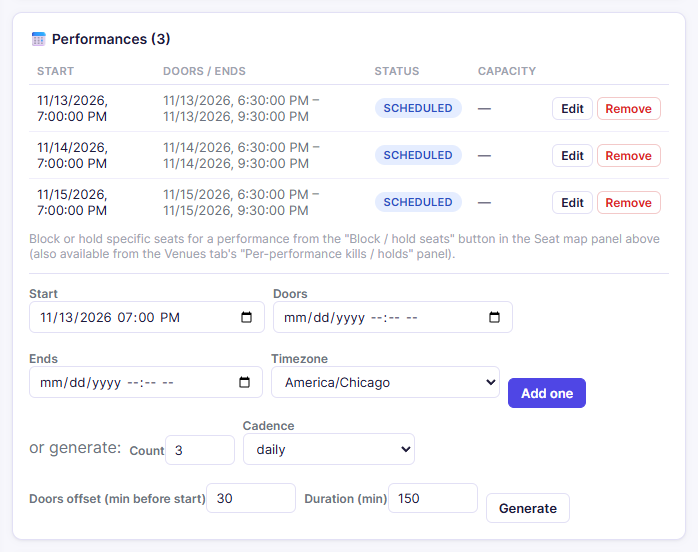
Add one performance
- Fill in Start (required). You can also add Doors (when the doors open), Ends, and the Timezone.
- For general admission, you can set a GA capacity for this performance only. Leave it blank to use the event's default.
- Click Add one.
Add a series at once
Use this for runs like "Thursday, Friday, and Saturday nights" or "every Friday home game."
- Fill in Start with the first performance's date and time.
- Next to or generate:, set:
- Count: how many performances (1–60).
- Cadence: weekly, daily, or every N days (then enter the number).
- Doors offset (min before start): e.g.
30for doors 30 minutes before. - Duration (min): e.g.
150for a 2½-hour show. This sets each end time.
- For weekly, tick the days under repeat on: (for example Fri and Sat). If you leave them all unticked, it repeats on the same weekday as the start date.
- Click Generate.
Note: Every generated performance starts at the same time of day as the first one. If your Sunday matinee is at 2 PM, click Edit on that row afterward and change its start time.
Edit, pause, or cancel one performance
- Click Edit on the performance's row.
- Change Start, Doors, Ends, Timezone, or (general admission) GA capacity, then click Save.
- To change its status, click one of the Move to … buttons in the same box:
- on_sale: open this performance for sales.
- paused: stop sales for now. You can resume later.
- closed: sales are over for good.
- cancelled: the performance won't happen.
Click Remove to delete a performance entirely.
Note: closed and cancelled are final and can't be undone. Changing a performance's status doesn't refund tickets that were already sold.
Common questions
Do performances go on sale by themselves? You don't need to move each one. Once the event is on sale, its scheduled performances are sold online and at the box office. Use a performance's own Move to … buttons only when one date needs to be different, for example pausing a night that's almost full.
Where do I block seats for one night? From the Block / hold seats button in the Seat map panel. See Blocking and holding seats.
Related
- Going on sale: the event needs at least one future performance
- Blocking and holding seats