Going on sale
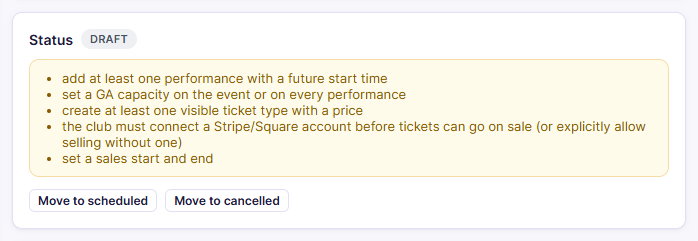
The Status panel shows where an event is in its lifecycle. Until the event is ready, it also shows a checklist of what's missing.
Where to find it: Events tab → select an event → Status panel
Who can use this: anyone with Manage Ticketing (Studio)
Event statuses
| Status | Meaning | Can move to |
|---|---|---|
| draft | Being set up. Not visible to buyers | scheduled, cancelled |
| scheduled | Ready, waiting for sales to open | on_sale, draft, closed, cancelled |
| on_sale | Buyers can purchase online | paused, closed, cancelled |
| paused | Online sales temporarily stopped | on_sale, closed, cancelled |
| closed | Sales are over for good | — |
| cancelled | The event won't happen | — |
Click the matching Move to … button to change the status.
Put an event on sale
- Clear every item on the checklist (see the table below).
- Click Move to scheduled.
- Either click Move to on_sale now, or wait: the event goes on sale by itself at the first :00 or :30 on or after its Sales start time.
Move to on_sale stays greyed out until the checklist is empty.
Checklist items
| Checklist message | Fix |
|---|---|
| add at least one performance with a future start time | Add a performance. See Performances |
| attach a published seat-map revision | Reserved only. Attach a map in the Seat map panel. See Pricing and ticket types |
| the attached seat-map revision is not published | Publish the map in the Venues tab, or attach a published version |
| set a GA capacity on the event or on every performance | General admission only. Fill in Default GA capacity in Event details |
| create at least one visible ticket type with a price | Add a ticket type with Visible to buyers ticked. See Pricing and ticket types |
| the club must connect a Stripe/Square account… | Connect a payment provider, or tick Allow this event to go on sale even though no Stripe/Square account is connected yet in Event details |
| set a sales start and end | Fill in Sales start and Sales end, then click Save |
| sales start must be before sales end | Fix the dates, then click Save |
| the sales window has already ended | Move Sales end into the future, then click Save |
Note: The checklist refreshes when you change the status. If you've fixed everything but an item is still listed, click Move to scheduled (or Refresh at the top of the page) to re-check.
Pause, close, or cancel
- Move to paused stops online sales temporarily. Click Move to on_sale to resume.
- Move to closed ends sales for good. Use it after the last performance.
- Move to cancelled marks the event as not happening.
closed and cancelled can't be undone. Changing the status doesn't refund anyone. If you cancel an event that already has sales, refund each order from the Orders tab.
Related
- Sharing and scanner access: what to do once you're on sale
- Event details: the sales window and payment settings