Orders
The Orders tab lists every order for your organization, whether bought online or at the box office. Use it when a buyer calls with a question: find their order, then refund it, email them their tickets, or set it aside for pickup at the door.
Where to find it: Orders tab (or Box Office tab → Orders button, or by clicking any confirmation code in the Box Office cash drawer)
Who can use this: anyone with Manage Ticketing (Studio) or Run Box Office
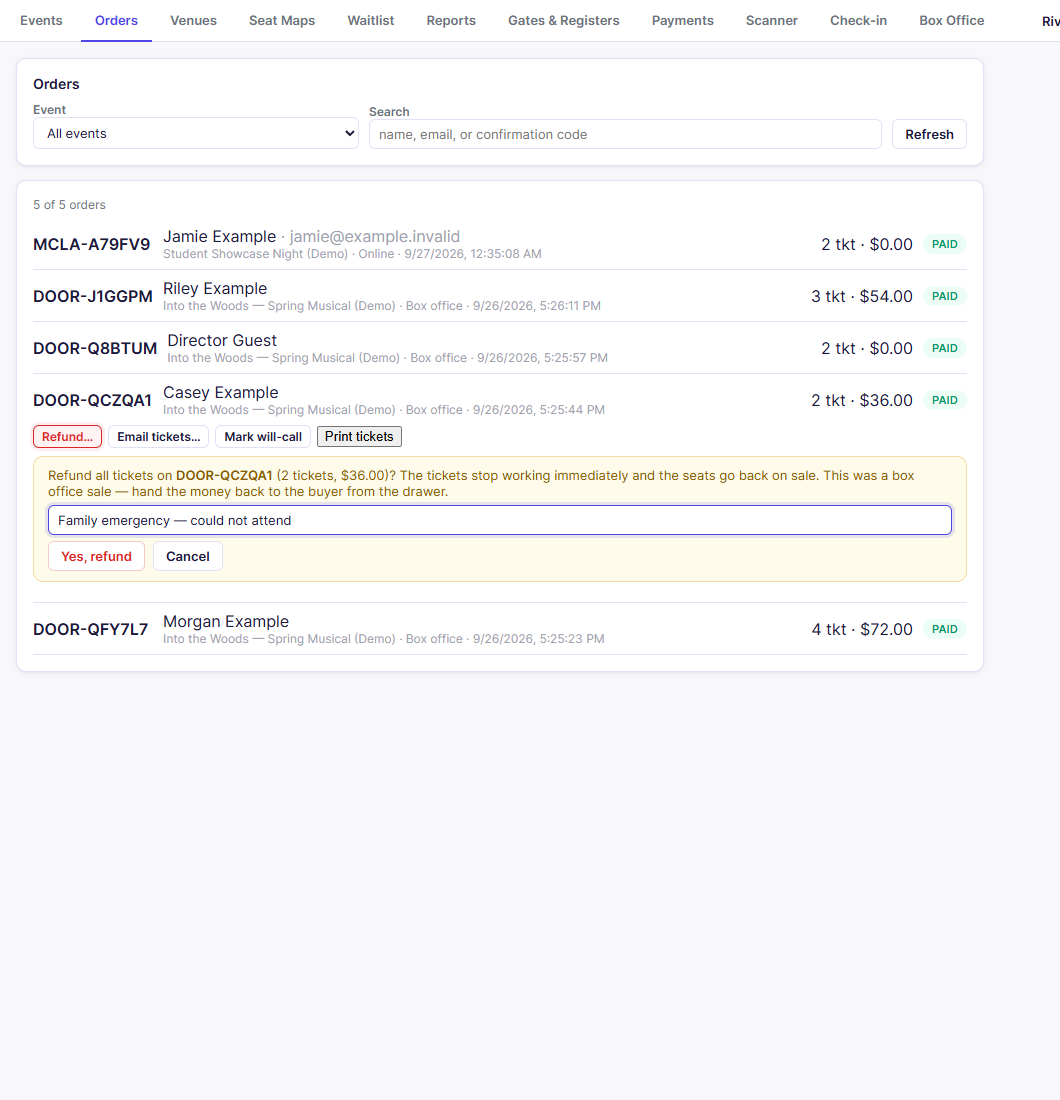
Find an order
- Optionally pick an Event to narrow the list.
- Type in Search: a buyer's name, email, or confirmation code (for example
DOOR-QCZQA1). - Click an order to open its actions.
Each row shows the confirmation code, buyer, event, channel (Online or Box office), when it was bought, tickets and total, and a status badge (paid, refunded, partially refunded). A will-call badge appears on orders set aside for pickup.
Refund an order
- Open the order and click Refund….
- Read the confirmation. It shows how much will be refunded, and:
- For an online order, the card payment goes back to the buyer's card through your Stripe or Square account.
- For a box office order (cash, check, comp), nothing is charged back. Hand the money back from the drawer.
- Optionally add a Reason.
- Click Yes, refund.
The tickets stop working immediately, and the seats go back on sale. If the performance has a waitlist, the freed tickets are offered to the next person in line.
Note: A refund returns everything the buyer paid for those tickets, including fees.
Refund add-on items only
If an order includes add-ons (such as concessions, flowers, or merch) and the buyer wants to return an item while keeping their tickets:
- Open the order and click Refund items….
- Enter the quantity to refund next to each add-on item, and optionally a Reason.
- Click Refund selected items.
The buyer's tickets remain valid, and each returned item is refunded along with its share of fees and tax.
Email the tickets again
- Open the order and click Email tickets….
- Check the address. Change it if the buyer gave you a new one, or add one for a walk-up sale made without an email. Changing it updates the order.
- Click Send.
Will-call
Click Mark will-call to set the order aside for pickup at the door. It then appears in the Will-call list on the Check-in desk. Click Remove from will-call to undo.
Print tickets
Click Print tickets to open the order's tickets, with QR codes, ready to print.
Related
- Payments: refunds go back through your connected provider
- Cash drawer and will-call: refunds show in the drawer totals
- Reports: patron lists and sales totals