Payments
Connect your organization's own Stripe or Square account so buyers can pay by card online. Ticket money goes straight into your account. Ticketing by BoosterConsensus only collects its platform fee: 1% of the ticket price plus $0.75 per ticket for standalone Ticketing and BoosterConsensus Core accounts (or 1% plus $0.50 per ticket on paid BoosterConsensus Plus and Complete plans). Donations carry no platform fee.
Where to find it: Payments tab
Who can use this: anyone with Manage Ticketing (Studio). Your email address must be verified.
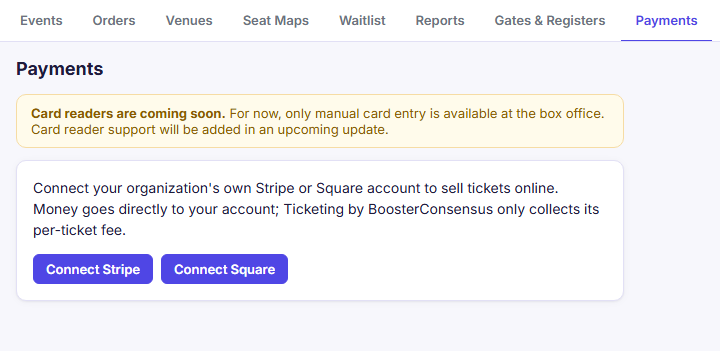
Connect a provider
You connect Stripe or Square in your Ticketing by BoosterConsensus account, the page you land on when you sign in at the BoosterConsensus address from your welcome email.
- Verify your email address first: click the link in your welcome email, then sign out and back in.
- On the Payments tab here, click Open payment settings. It opens your Ticketing by BoosterConsensus account in a new tab. Sign in with the same email and password.
- Click Connect Payment Provider, then Connect with Stripe or Connect with Square.
- Sign in to your Stripe or Square account (or create one) and approve the connection. You're sent back to your account with a confirmation message.
- Return to Ticketing by BoosterConsensus and start selling.
Once connected, your account's Payments card shows Manage Stripe connection (or Square). You can disconnect or reconnect from the same place.
Square users: your Square account needs at least one active location that can take card payments.
What you don't need a provider for
- Box Office cash, check, comp, and manually-run card sales. See Box Office.
- Free tickets online, if you tick Allow this event to go on sale even though no Stripe/Square account is connected yet on the event. See Event details.
Disconnect
- In your Ticketing by BoosterConsensus account, open Payments → Manage Stripe connection (or Square) and choose Disconnect.
- If the account has recent orders, refunds for those orders will then have to be made from your Stripe or Square Dashboard.
Disconnecting stops online card sales until you connect an account again. To switch between Stripe and Square, disconnect first, then connect the other one.
Refunds
Refund an order from the Orders tab. Card payments go back to the buyer's card through your Stripe or Square account. The buyer gets back everything they paid, and Ticketing by BoosterConsensus returns its platform fee to you (a share of it on a partial refund). Stripe and Square keep their own processing fee.
Status messages
| Message | Meaning | Do this |
|---|---|---|
| "Verify your email address before connecting a payment provider…" | Your email isn't verified yet | Click the link in your welcome email, then sign out and back in |
| "Payments are set up in your Ticketing by BoosterConsensus account." | This is where you connect Stripe or Square | Click Open payment settings and connect there |
| "Online card payments through Ticketing by BoosterConsensus are temporarily paused by the platform…" | Online card checkout is paused for everyone | Keep selling at the Box Office. Refunds aren't affected |
| Suspended badge | Online sales are paused for your organization | Contact support to resume |
| "Stripe hasn't enabled charges on this account yet…" | Your Stripe setup isn't finished | Finish account setup in your Stripe Dashboard |
| Test mode badge | The connected account is a test account | Connect your live account before selling real tickets |
| "Connection cancelled — nothing was changed." | You backed out of the Stripe/Square screen | Click Connect again when you're ready |
| "That connection link expired…" | You took too long on the Stripe/Square screen | Start again |
| "A payment account is already connected…" | You tried to connect a second account | Disconnect the current one first |
| "Your Square account has no active location…" | Square can't take card payments yet | Add a location in Square, then try again |
| "Payments for this organization are managed in BoosterConsensus." | Your club uses full BoosterConsensus | Connect or change payments in the BoosterConsensus admin panel instead |
| "Your upgrade isn't finished" (in your account) | You started upgrading but didn't save a payment method | Nothing has changed. Resume the upgrade, or cancel it. See Upgrade to full BoosterConsensus |
Related
- Event details: fee display and selling without a provider
- Box Office: card-present and cash sales
- Upgrade to full BoosterConsensus: add dues, polls, committees, and accounting