Pricing and ticket types
How you price an event depends on its seating type:
- General admission: each ticket type has one price, e.g. "General Admission — $8."
- Reserved seating: the seat map sorts seats into price levels (Premium, Standard…), and each ticket type has a price for each level.
Where to find it: Events tab → select an event → the 🎭 Seat map, Price levels, and 🎫 Ticket types panels
Who can use this: anyone with Manage Ticketing (Studio)
Attach the seat map
(Reserved seating only.)
- Make sure the event has a venue. See Event details.
- In the 🎭 Seat map panel, pick a published map from — published revision —, for example "Main Floor v1 (240 seats)."
- Click Attach.
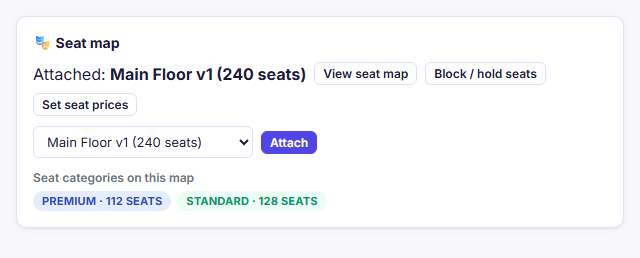
The panel then lists the map's seat categories, such as PREMIUM · 112 SEATS. It also shows View seat map and, once you have performances, Block / hold seats (see Blocking and holding seats) and Set seat prices (see below).
Only published seat maps can be attached. To build or publish one, see the Seat map editor.
Set seat prices for this event
(Reserved seating only.)
The seat categories painted on a venue's seat map are only defaults. If your club shares a school auditorium map with other clubs — or wants different front-row or balcony pricing for a special show — you don't need to clone the seat map. Click Set seat prices in the 🎭 Seat map panel to assign price levels for this event only:
- Choose Performances: All performances (same prices every date) (the usual choice — dates added later follow it too) or Only [a single performance date].
- Select seats on the map: click individual seats, click a section's empty space to select the whole section, or turn on Select and drag a box around seats.
- Under Set the selected seats to, choose one of this event's price levels (or Map default level to revert to the map's default).
- Click Review changes. A dry-run summary shows how many unsold seats will change price and lists any seats that are already sold or held — those seats keep the price they were sold or quoted at, so nobody is ever overcharged or refunded.
- Click Save prices.
Other events at the same venue (including other clubs' events using the same shared map) are completely unaffected.
Price levels
(Reserved seating only.)
Each seat on your map belongs to a category with a short key, such as A for Premium
and B for Standard. The event needs a matching price level for each one.
The easy way: after you attach a map, a yellow notice says some categories have no matching price level. Click Sync from seat map to add them all at once.
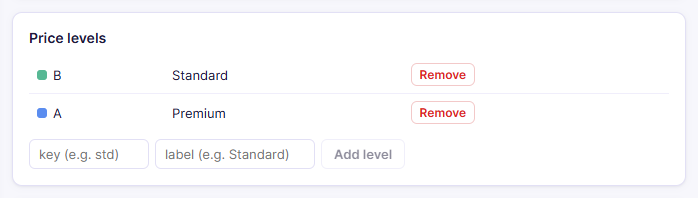
To add one by hand, enter a key (it must match the seat map's key exactly) and a label, then click Add level. Click Remove to delete one.
Create a ticket type
- In the 🎫 Ticket types panel, enter a Name, for example "Adult," "Student / Senior," or "General Admission."
- Enter the price:
- General admission: Price $, plus an optional Member price $.
- Reserved: a price for each level (e.g. Premium $ and Standard $), each with an optional member price.
- Set Min per order and Max per order (defaults 1 and 10), and optionally a Quantity cap (the total you'll sell of this type; blank means unlimited).
- Leave Visible to buyers ticked, unless the type is for staff use only.
- Click Add type.
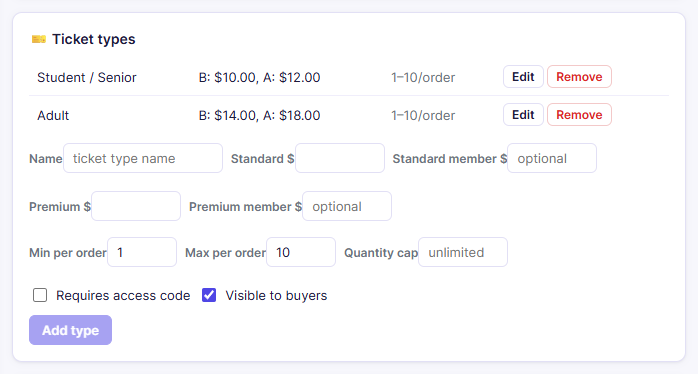
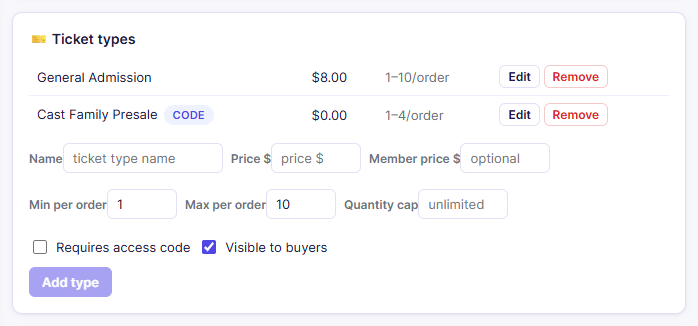
To change a ticket type, click Edit, update the fields, and click Save. Click Remove to delete it.
How buyers choose a type for a seat: when an event has several ticket types (for example Adult and Student / Senior), each seat a buyer or box office cashier picks gets a drop-down to choose the type. It starts on the full-price type, so a discount is always a deliberate choice. General admission buyers pick the type from a list.
General admission capacity is shared. All GA ticket types draw from the same performance capacity. A 150-seat show with Adult and Student types sells 150 tickets in total, not 150 of each.
Field reference
| Field | Required? | Notes |
|---|---|---|
| Name | Yes | What buyers see, e.g. "General Admission" |
| Price $ / level prices | Yes, at least one | Dollars and cents, e.g. 12.50 |
| Member price $ | No | Discounted price for your members. Only applies when a buyer arrives through a BoosterConsensus member link, so ticketing-only organizations can leave it blank |
| Min per order | No, default 1 | The smallest number a buyer can buy at once |
| Max per order | No, default 10 | The largest number a buyer can buy at once |
| Quantity cap | No | Total tickets of this type across the performance |
| Requires access code | No | Hides this type until the buyer enters a presale code. See Promo and access codes |
| Visible to buyers | Yes for at least one type | Hidden types don't appear on your public pages |
Troubleshooting
| If you see... | It means... | Do this |
|---|---|---|
| "Add a price level first." | A reserved event has no price levels | Attach the seat map and click Sync from seat map |
| "Pick a venue first to see its seat maps." | The event has no venue | Choose a Venue in the details panel and click Save |
| Removing a price level gives an error | A ticket type still has a price for that level | Edit the ticket type to clear that level's price, then remove the level |
Related
- Seat map editor: where seat categories come from
- Going on sale: at least one visible, priced ticket type is required