Sharing and scanner access
Two buttons next to an event's name help once the event is ready:
- Get QR / Share Link: the public link and QR code for buyers.
- Scanner Access: a QR code that door volunteers scan with their own phones to start checking tickets.
Both popups close when you click × in the top corner, press Escape, or click outside the popup.
Where to find it: Events tab → select an event → the buttons next to the event's name
Who can use this: anyone with Manage Ticketing (Studio)
Share the event with buyers
- Click Get QR / Share Link.
- Use any of these:
- Copy link: paste it into emails, newsletters, or social posts.
- Download PNG: the QR code as an image for flyers and programs.
- The QR code itself: buyers scan it with a phone camera.
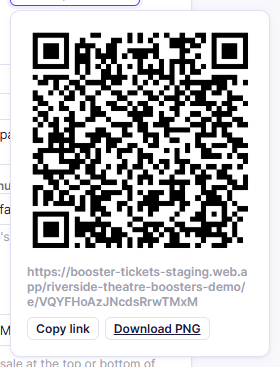
The link opens the public event page, where buyers pick a performance. Buyers can also open a printable poster from Printable QR poster on that page. See For Ticket Buyers.
Your organization also has a page listing every event on sale, at
booster-tickets.web.app/your-club-name. Open any event link and remove everything
after your club's name to find it.
Scanner Access for door volunteers
This is the quickest way to get volunteers scanning. They don't need an account, an app, or a password.
- Click Scanner Access.
- Choose the Gate they'll be working at. Desk is used if you haven't set up named gates.
- Click Generate QR.
- Show the QR code to your volunteers, or click Copy link and text it to them.
- Each volunteer scans it, types their name, and taps Join. See Personal phone scanners.
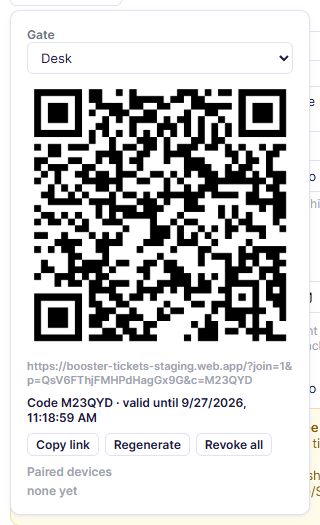
The popover also shows the pairing Code and when it expires (valid until …). Under Paired devices, you'll see each volunteer who joined.
| Button | What it does |
|---|---|
| Copy link | Copies the join link to share by text or email |
| Regenerate | Makes a new QR code. The old one stops working for new joins |
| Revoke all | Signs out every phone paired to this gate |
| Revoke (next to a name) | Signs out just that volunteer's phone |
Note: A paired phone can only scan tickets in for this event. It can't sell, refund, or change anything. Still, treat the QR code like a key. Don't post it publicly, and click Revoke all after the event.
Related
- Personal phone scanners: what the volunteer sees
- Scanner: scanning with a staff login