Venues
A venue is the place your event happens: its address, contact details, and buyer-facing notes. Each venue can have one or more seat maps for reserved seating, and each seat map keeps a history of revisions (versions).
Where to find it: Venues tab
Who can use this: anyone with Manage Ticketing (Studio)
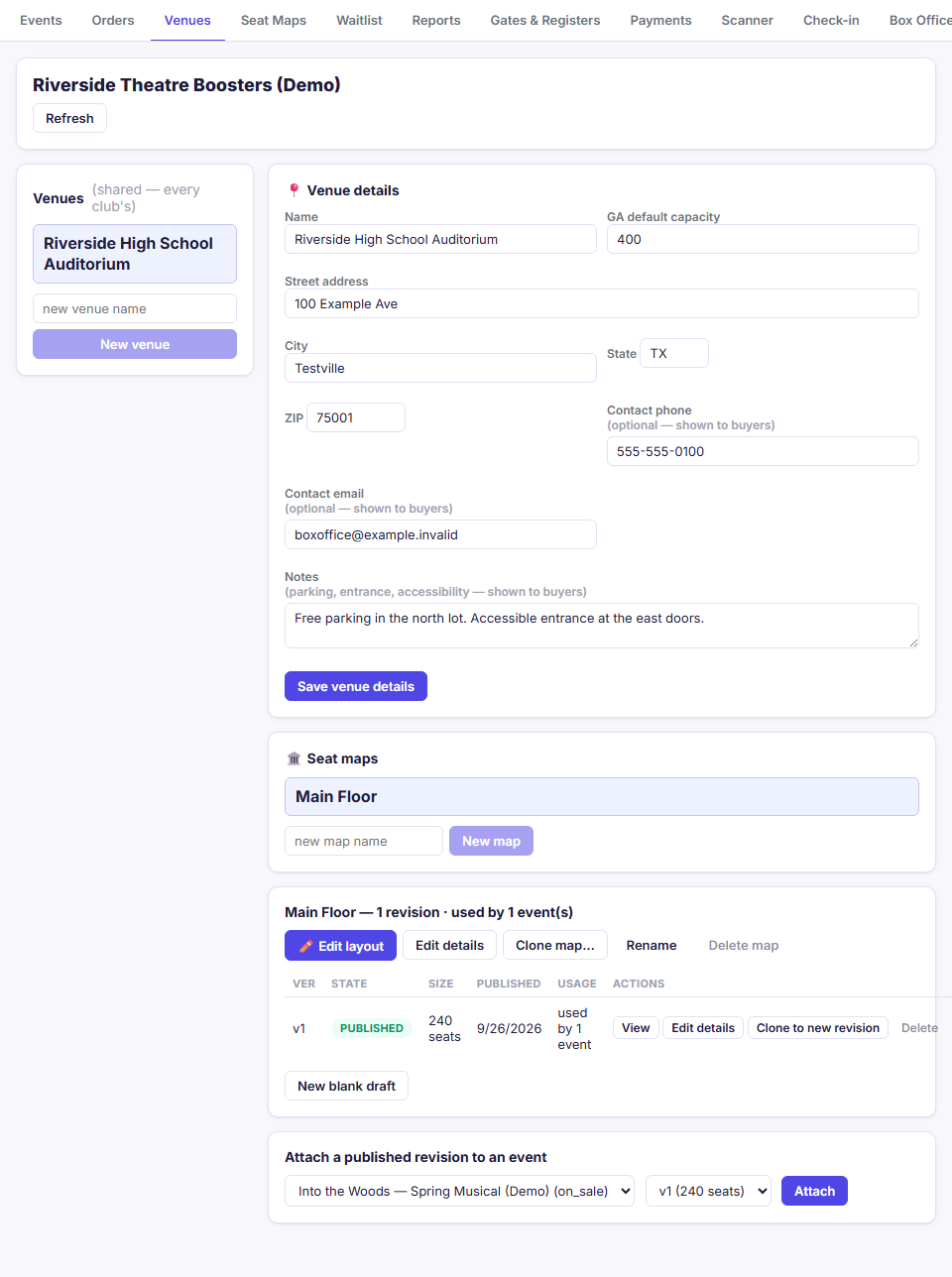
Add a venue
- In the Venues list on the left, type the name in new venue name.
- Click New venue, then click the new venue in the list.
- In 📍 Venue details, fill in the address and anything buyers should know.
- Click Save venue details.
Venue fields
| Field | Notes |
|---|---|
| Name | Shown to buyers |
| GA default capacity | A starting capacity for general admission events here |
| Street address, City, State, ZIP | Shown on the event page, in confirmation emails, and on tickets. Buyers get a Get directions → link |
| Contact phone / Contact email | Optional. Shown to buyers |
| Notes | Parking, entrance, accessibility. Shown to buyers |
Note: The venue list is shared: venues created by other organizations appear too, marked with by [club name] ⚠. You can use them, but you can't edit them. Check that a shared venue's details and seat map match your actual space before you sell with it.
Seat maps and revisions
With a venue selected, the 🏛️ Seat maps panel lists its maps. A venue can have several maps, for example "Main Floor" and "Main Floor + Balcony."
To create a map: type a name in new map name, click New map, and click the map to open it. A blank v1 draft is created for you.
When you select a seat map, an action bar at the top of the map panel gives you one-click access to the most common tasks:
| Map action button | What it does |
|---|---|
| ✏️ Edit layout | Opens the current draft in the seat map editor, or starts a new draft from the latest published revision |
| Edit details | Updates section names, row labels, stage markers, and positions in place on the published revision — even while events are using it — without changing seat counts, types, or prices |
| Clone map… | Makes your own copy of the map (in the same venue or another venue) and opens the copy straight in the editor as a draft |
| Rename | Renames the seat map |
| Delete map | Deletes the seat map and all its versions (disabled while any event is attached to it) |
Below the action bar, the revisions table lists each version, its state (draft or published), seat count, publish date, and how many events use it:
| Revision row action | Available on | What it does |
|---|---|---|
| Edit seats | Draft | Opens the draft in the seat map editor |
| Publish | Draft | Locks the revision so events can use it |
| View | Published | Opens the map read-only |
| Edit details | Published | Edits names, row labels, and positions in place on that published revision. Already-sold or held seats keep the label on the buyer's ticket |
| Clone to new revision | Published | Copies it into a new draft revision on the same map |
| Diff vs vN | Any revision after the first | Lists seats added, removed, moved, or repriced since the previous version |
| Delete | Unused revisions | Permanently deletes that revision after you confirm with Yes, delete |
Below the table, New blank draft starts an empty draft when the map doesn't already have one open.
When to use Edit details vs. Edit layout: Use Edit details when you just need to fix a row letter, rename a section, move a section slightly, or adjust the stage marker on a map that's already published and attached to an event. Use ✏️ Edit layout (or Clone to new revision) when you need to add or remove seats, rows, or sections, then publish the new version and attach it to your event. To change seat prices for a single event without touching the shared map, use Set seat prices on the event instead (see Pricing and ticket types).
Attach a map to an event from here
The Attach a published revision to an event panel does the same thing as the Attach button on the Events tab. Pick the event and the published revision, then click Attach.
The Per-performance kills / holds panel opens the seat blocker for any event with an attached map. See Blocking and holding seats.
Troubleshooting
| If you see... | It means... | Do this |
|---|---|---|
| Edit seats is greyed out | The map belongs to another organization | Use Clone map to make your own copy |
| Delete is greyed out | The revision is attached to an event | Attach a different revision to the event first |
| New blank draft is greyed out | The map already has a draft | Edit the existing draft, or delete it first |
Related
- Seat map editor: build the layout
- Pricing and ticket types: attach a map to an event