Signing in
Ticketing by BoosterConsensus uses your BoosterConsensus login, so it's the same email and password whether you created a ticketing-only account or your club already uses BoosterConsensus.
Where to find it: the Ticketing by BoosterConsensus home page → Sign in (top right)
Who can use this: anyone whose account has at least one ticketing permission for a club.
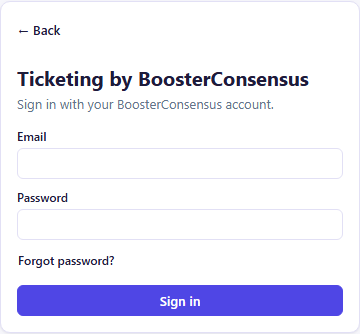
Sign in
- Click Sign in at the top right of the home page.
- Enter your Email and Password, then click Sign in.
- What happens next depends on your account:
- One club: you go straight to that club's tabs.
- More than one club: a Choose a club list appears. Click the club you want to work on.
You stay signed in on that device until you click Sign out.
Reset a forgotten password
- On the sign-in card, click Forgot password?
- Enter your account email and click Send reset link.
- Open the email and follow the link to set a new password, then sign in again.
For privacy, the confirmation reads "If an account exists for that email…" whether or not the address is registered.
Switch clubs
If you help with more than one club, click Switch club at the top right to go back to the Choose a club list.
Note: If you reopened the app and it signed you back in automatically, Switch club may sign you out instead. Sign in again and you'll get the club list.
Troubleshooting
| If you see... | It means... | Do this |
|---|---|---|
| "Incorrect email or password." | The email or password doesn't match | Check for typos, or use Forgot password? |
| "Too many attempts — try again in a few minutes." | Too many failed sign-ins in a row | Wait a few minutes, then try again |
| "No ticketing access found for your account…" | Your login doesn't have a ticketing permission for any club | Ask your club admin to grant one. See Adding staff and permissions |
| "Your account doesn't have a ticketing permission for [club]…" | You picked a club where you have no ticketing role | Click Switch club and pick another club, or ask that club's admin for access |
| Only some tabs appear | You only hold some permissions | This is expected. See the permission table in Getting Started |