Promo and access codes
Codes let you reward or reach specific groups:
- Discount codes take a percentage or a dollar amount off at checkout, for example
SAVE10for 10% off. - Presale / access codes reveal ticket types that are otherwise hidden, for example a cast-family presale or a free comp for volunteers.
Every code can have a usage limit, counted in orders or in tickets. You can also generate a batch of unique codes, one per person, for example one per cast family.
Buyers enter codes with Have a code? on the ticket page.
Where to find it: Events tab → select an event → 🏷️ Promo & access codes panel (below Ticket types)
Who can use this: anyone with Manage Ticketing (Studio)
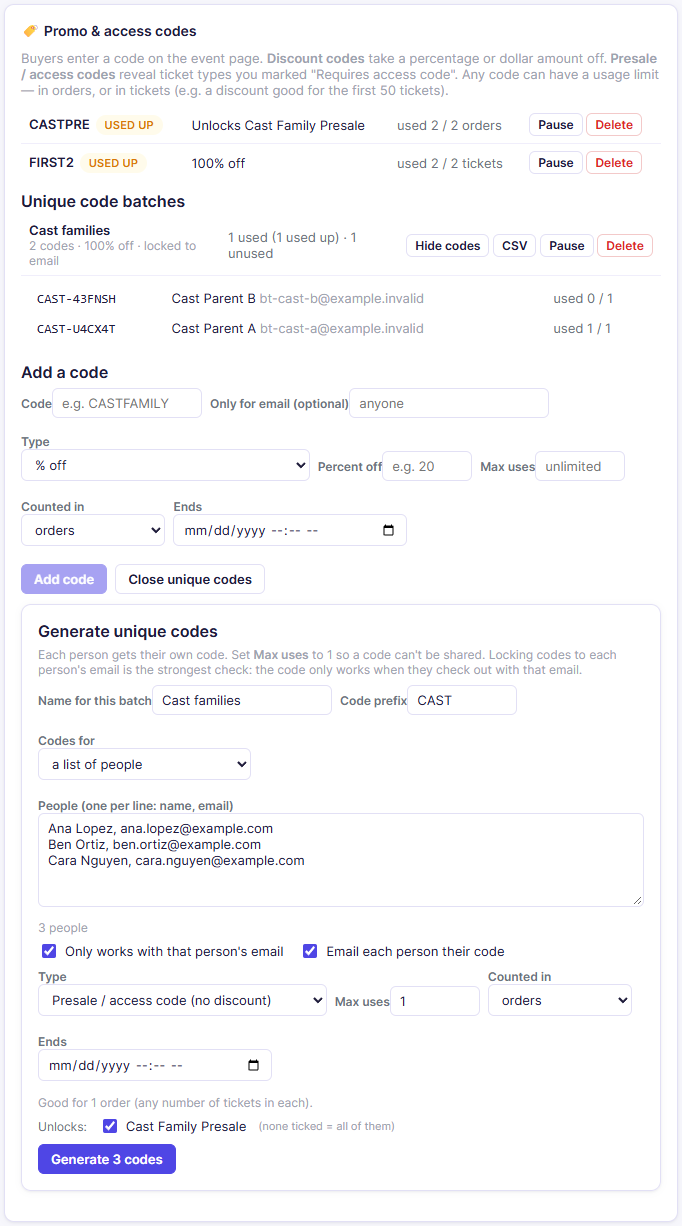
Create a discount code
- Type the Code, for example
SAVE10. Letters, numbers,-and_only. - Set Type to % off or $ off.
- Enter the Percent off (1–100) or Dollars off.
- Optionally set a limit (see Usage limits) and Ends (when it stops working).
- Click Add code.
The discount is applied at checkout, where the buyer sees their new total before paying.
Create a presale / access code
- First, on the 🎫 Ticket types panel, create the ticket type the code should reveal (for example "Cast Family Presale") and tick Requires access code. That type is now hidden from everyone.
- In the codes panel, type the Code, for example
CASTFAM. - Set Type to Presale / access code (no discount).
- Under Unlocks, tick the ticket types this code reveals. If you tick none, it reveals every access-code ticket type on the event.
- Optionally set a limit (see Usage limits) and Ends, then click Add code.
When a buyer enters the code, the hidden type appears in their ticket list and becomes the selected type. The presale price is whatever you set on that ticket type, including $0 for a comp.
Usage limits
Max uses caps how often a code works. Counted in decides what a "use" is:
- orders: each order that uses the code counts once, however many tickets it has. For example, a presale code for 20 cast families: Max uses 20, counted in orders.
- tickets: each ticket counts. For example, a discount for the first 50 tickets: Max uses 50, counted in tickets. If an order would go past the limit, only the tickets still within it get the discount; the rest are full price.
Leave Max uses blank for no limit. Uses are counted for presale codes and discount codes alike.
A code is set aside the moment a buyer starts checkout, so two people can't both use the last use at the same time. If the buyer doesn't finish (they leave, their hold expires, or payment fails), the use is given back. A full refund also gives it back.
Only for one email
To make a code work for one person only, enter their address in Only for email. The code then works only when the buyer checks out with that email. Anyone else who tries it sees "That code was issued to a different email address."
Unique codes for a group (for example, a cast)
A shared code can be passed around. For a cast, a team, or volunteers, give each person their own code instead:
- Click Generate unique codes….
- Give the batch a Name (for example "Cast families") and a Code prefix (for
example
CAST). Codes look likeCAST-7KQ2MX. - Under Codes for, choose:
- a list of people, and paste one person per line as
name, email. You can copy the two columns straight from a spreadsheet; or - a number of codes, and enter how many (up to 500) to hand out yourself.
- a list of people, and paste one person per line as
- For a list of people, choose:
- Only works with that person's email (recommended): the strongest check that the code is really used by that person. Each code works only with its own email.
- Email each person their code: each person gets an email with their code and a link that fills it in for them.
- Set the Type, the amount or the ticket types it Unlocks, and the limit. Max uses starts at 1, so each code can be used for one order.
- Click Generate.
The batch appears under Unique code batches with how many codes have been used. From there:
- Show codes lists each code, who it's for, and whether it's been used.
- CSV downloads the codes, for mail merge or printing.
- Pause and Delete apply to every code in the batch.
Pause or delete a code
- Pause stops a code working without deleting it. Click Turn on to bring it back.
- Delete removes it for good.
The table shows how much each code has been used, for example "used 3 / 20 orders" or "used 50 / 50 tickets". A code that has reached its limit is marked used up.
Common questions
Can a buyer use a presale code and a discount code together? Yes. They can apply both on the ticket page.
Is a code for one event only? Yes. Codes created in an event's panel only work for that event.
How do I know it's really a cast member using a cast code? Generate unique codes from your cast list, with Only works with that person's email ticked and Max uses 1. A code shared with someone else won't work for them, and each code can be used once.
A buyer started checkout but didn't pay. Is their code used up? No. The use is given back when the checkout is abandoned or expires.
Troubleshooting
| If you see... | It means... | Do this |
|---|---|---|
| "promo code … already exists" | Your organization already has that code | Choose a different code |
| "No ticket types on this event are marked 'Requires access code' yet." | There's nothing for a presale code to unlock | Tick Requires access code on a ticket type first |
| A buyer says "That code isn't valid." | The code doesn't exist for this event, or it's paused | Check the spelling, and that the code is on the right event and not paused |
| A buyer says "That code has expired." | Its Ends time has passed | Create a new code, or tell the buyer the offer has ended |
| A buyer says "That code has already been used." | The code reached its Max uses | Raise the limit by creating a new code, or generate them a new personal code |
| A buyer says "That code was issued to a different email address." | The code is locked to one email | Ask them to check out with the email the code was sent to |
| A batch shows "email not sent" for someone | Their email couldn't be delivered | Check the address, then give them the code from Show codes or the CSV |
Related
- Pricing and ticket types: creating the hidden presale type
- Buying tickets: what buyers see when they enter a code