Selling at the door
Where to find it: Box Office tab → Door sale
Who can use this: anyone with Run Box Office (or Manage Ticketing)
Choose the performance
- Choose the Performance (listed with its date and time).
- Choose your Register. Names come from Gates & Registers; use Desk if you haven't set any up. Each sale is recorded against the register and the staff member who made it.
Live ticket inventory
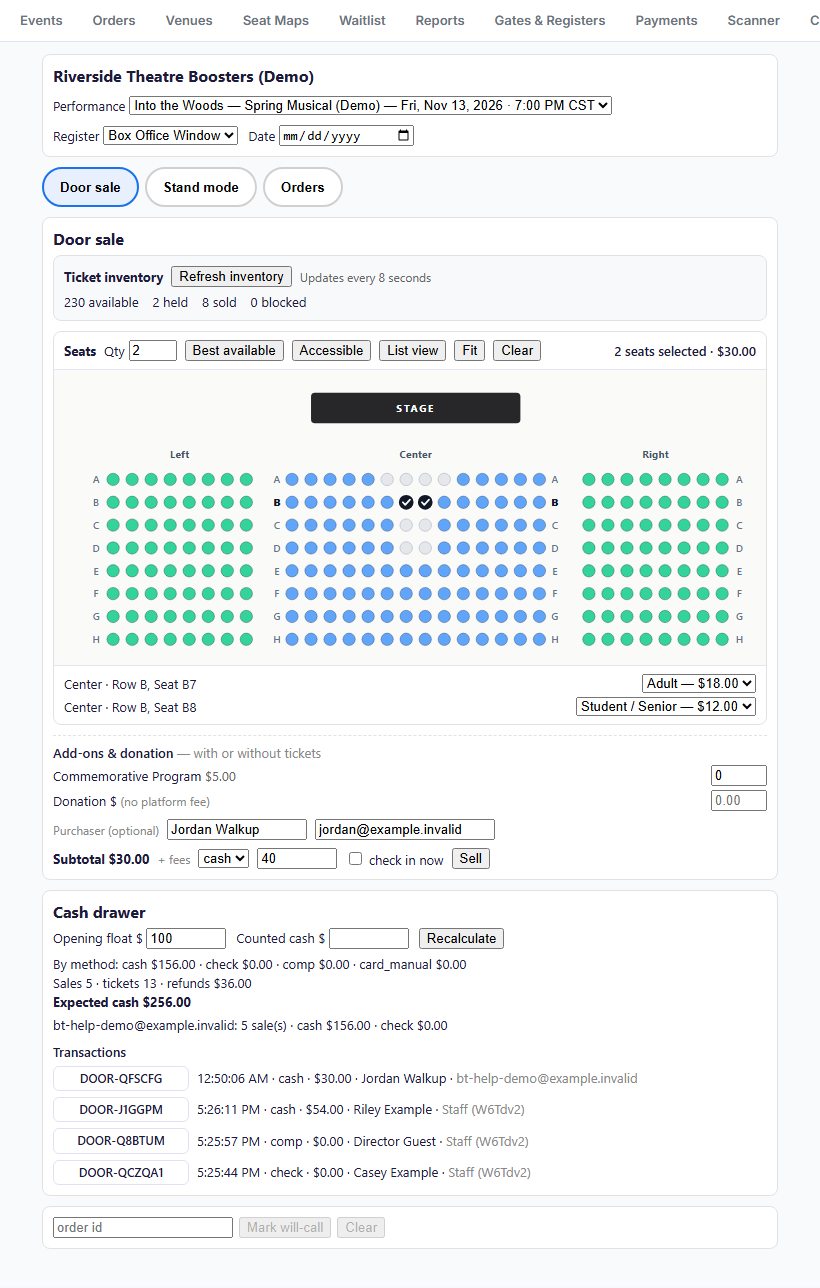
As soon as you pick a performance, the Ticket inventory box at the top of Door sale shows live availability so cashiers know what's left before promising seats to walk-up buyers:
- General admission: shows the remaining count for each ticket type (note that GA ticket types share the performance's total capacity).
- Reserved seating: shows live counts of available, held, sold, and blocked seats.
Counts refresh automatically every 8 seconds, or whenever you click Refresh inventory.
Ring up a sale
Reserved seating:
- Click seats on the map, or enter a number in Qty and click Best available.
- Accessible highlights accessible seats; List view shows seats as a list instead of a map; Clear starts over.
- The top right shows the count and total, e.g. "2 seats selected · $30.00."
- Below the map, each selected seat has a ticket-type drop-down (for example Adult or Student / Senior). It starts on the full-price type; change it for discounted tickets.
General admission:
- Enter a quantity next to each ticket type.
Add-ons & donation (with or without tickets):
Under Add-ons & donation — with or without tickets, you can add quantities of any concessions, programs, flowers, or merch from your Add-ons catalog, and/or type a Donation $ amount (donations carry no platform fee). You can ring up add-ons or a donation alongside tickets, or on their own with zero tickets selected. (Note: comp covers tickets only — ring up add-ons or donations as a cash, check, or card sale.)
Then, for any sale:
- Optionally enter the purchaser's Name and Email. With an email, the buyer's tickets are emailed to them automatically. If you leave both blank, the sale is recorded as "Door Sale"; hand them printed tickets (see below) or check them in on the spot. You can email the tickets later from the Orders tab.
- Choose the payment method (see the table below). For cash, type the amount handed to you in tendered $ to get the change amount.
- Tick check in now if the buyer is walking straight in. Their tickets are admitted immediately, so nobody needs to scan them.
- Click Sell.
| Payment method | Use it for |
|---|---|
| cash | Cash. Counts toward the drawer's expected cash |
| check | Paper checks |
| card_manual | A card run on a separate device (e.g. your own Square reader app). Records the sale only; no card is charged here |
| card_terminal | A Stripe or Square card reader paired to Ticketing by BoosterConsensus. The panel walks you through pairing and taking the payment |
| comp | Free tickets, e.g. for guests or cast families. $0 |
After the sale
A green line confirms the sale, for example "DOOR-QFY7L7 · 4 ticket(s) · $72.00 cash · change $8.00."

- Print Receipt prints a receipt with the tickets, any service fee, the total, the payment method, and change.
- Print Ticket prints paper tickets with QR codes.
Hand over the change, then start the next sale. Seats you just sold disappear from the map right away.
Stand mode (fast concession & merch sales)
Switch the toggle at the top of the Box Office from Door sale to Stand mode for a fast, one-handed screen at a concession stand, flower table, or spirit-wear booth:
- Tap large item tiles to add concessions, programs, flowers, or merch to the cart (use − on a tile to remove one, or New sale to clear).
- Optionally tap a donation chip ($1.00, $5.00, $10.00, $20.00).
- Tap Charge Card to send the total to your selected card reader. If you tap Charge Card twice with the exact same cart within 30 seconds, Stand mode asks "This is the same cart you just charged. Charge again?" to prevent accidental double charges.
Orders lookup and refunds in the Box Office
Click Orders at the top of the Box Office (or click any confirmation code button in the cash drawer's Transactions list) to open the Orders panel without leaving the Box Office. From there you can search by name, email, or confirmation code, reprint or re-email tickets, mark an order for will-call, or refund tickets or individual add-on items.
Card readers (card_terminal)
When your organization has paired a Stripe or Square smart reader — or a phone running the BoosterConsensus Pay companion app (Tap to Pay or Bluetooth reader) — in BoosterConsensus → Payments → Settings → Card readers:
- Choose card_terminal as the payment method (or open Stand mode).
- Select your reader from the Card reader list (each reader shows its status, such as Online, App open, In use, or Offline) and tap Charge Card.
- Have the buyer tap, insert, or swipe on the reader (or tap Open the app when using BoosterConsensus Pay on a phone). The sale completes automatically as soon as the reader approves. Use Cancel to stop a payment in progress, or Try again if a card is declined.
Troubleshooting
| If you see... | It means... | Do this |
|---|---|---|
| "no visible ticket types (check connection / performance id)" | No performance is selected, or the event has no visible ticket types | Select the performance. If it persists, check the event's ticket types |
| "No ticket type is priced for one of the selected seats." | A seat's price level has no price on any ticket type | Ask an organizer to add a price for that level. See Pricing and ticket types |
| Sell is greyed out | Nothing is selected | Pick seats or enter a quantity |
| A seat can't be selected | It's sold, blocked, or held | Pick another seat, or ask an organizer to unblock it |